# Map MCP Protocol
Traditional CAD map applications are operated by humans. Users need to learn complex CAD operation commands and map management workflows, and the operation cost is relatively high. Wouldn't it be very convenient if AI could help us operate maps?
If all CAD map applications could be intelligently transformed so that AI can understand and operate map data, everyone would have a virtual "map intelligent assistant." We would only need to "chat" with the map intelligent assistant like chatting, express our map requirements in natural language, and the intelligent assistant would automatically operate the map application to fulfill our needs. This would greatly improve people's work efficiency and experience in map processing, CAD drawing analysis, spatial data management, and more!
VJMap has implemented the technology of AI replacing humans to operate CAD map applications based on the MCP protocol, and applied it to our VJMap engine, achieving intelligent transformation of the VJMap system. Using MCP protocol tools, they are naturally supported for AI recognition and control, including map browsing, CAD drawing queries, spatial data extraction, graphic drawing, and other operations. It also provides a frontend SDK that supports rapid AI integration for existing map businesses and intelligentization. It currently supports frontend frameworks such as Vue, React, and Angular.
Since it is implemented based on the standard MCP protocol, it has universality and broad applicability. It can control map applications through various types of MCP Hosts—for example, through AI dialog boxes on web pages to control map applications, or through IDE tools such as Trae and Cursor, or through intelligent agent platforms such as Dify and Coze, or even through mobile apps, WeChat mini-programs, and other methods to remotely control your map application. We can chat with AI and let AI help us operate various map applications to fulfill our map-related needs.
# Demo
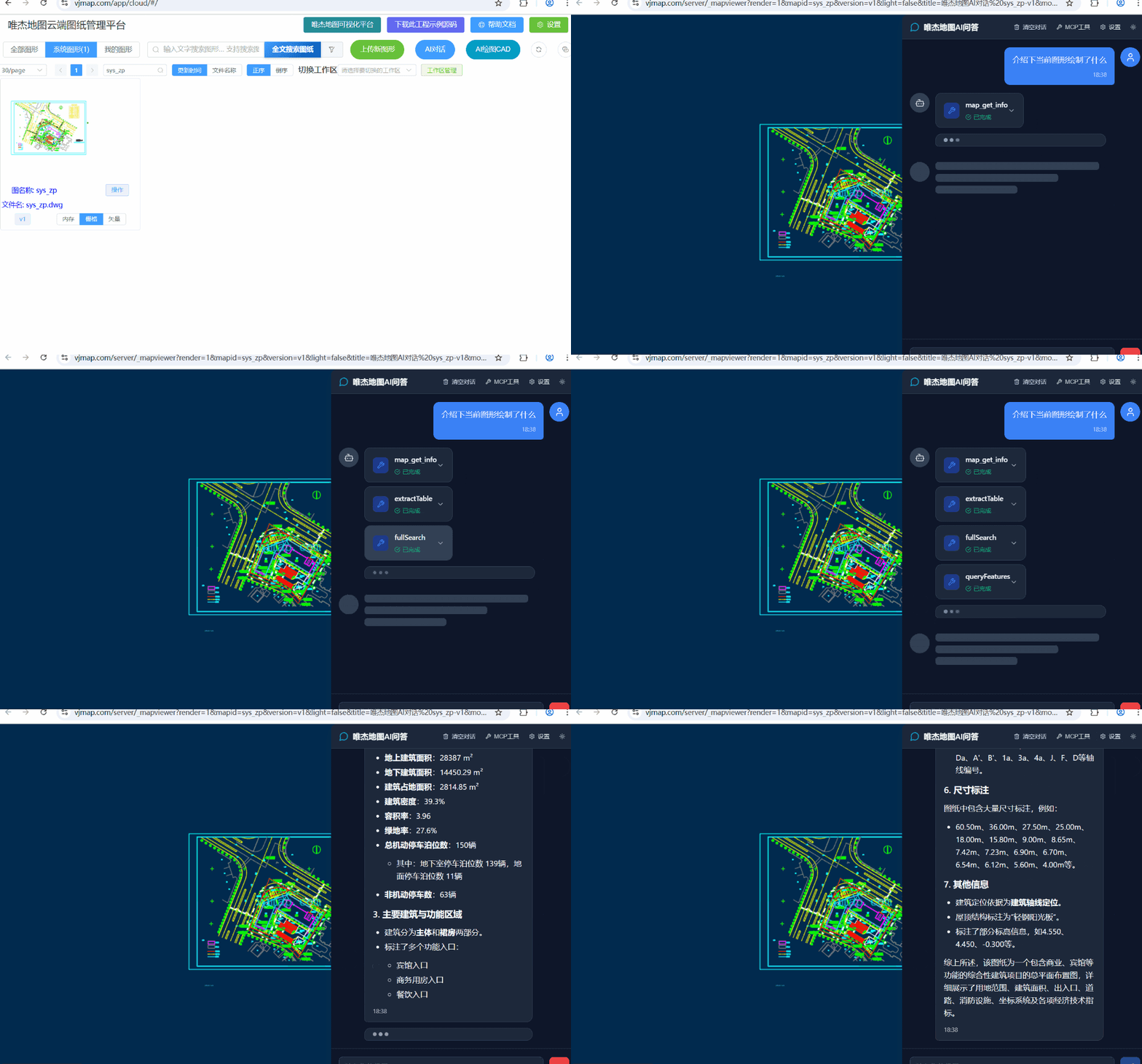
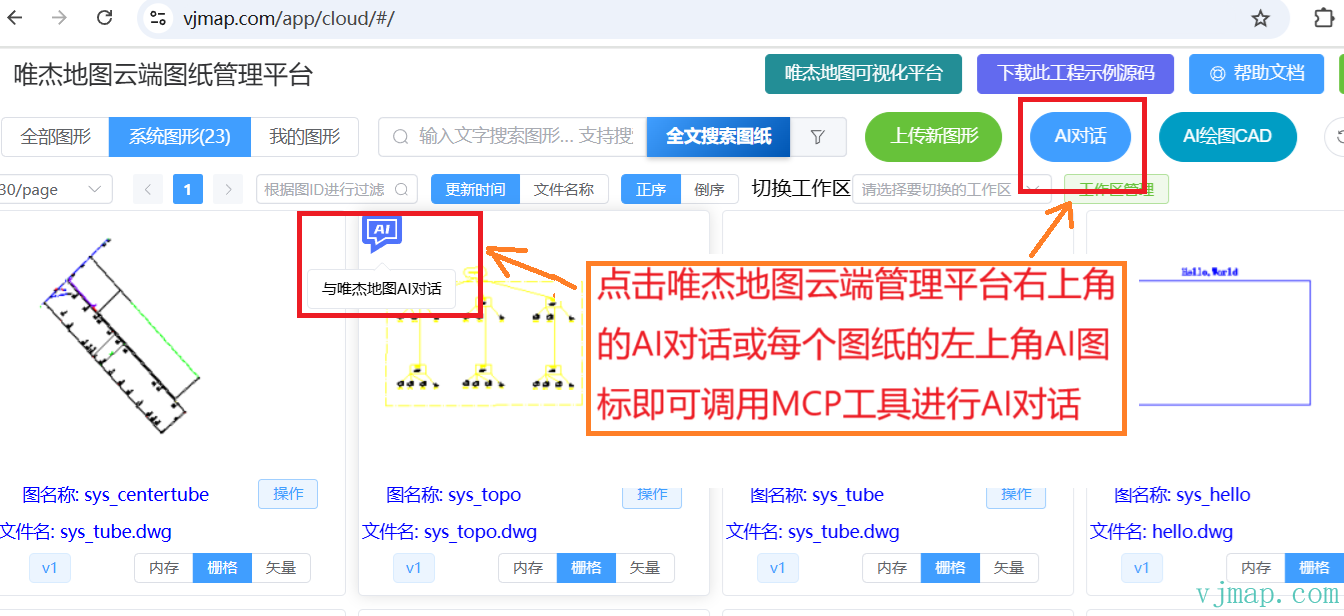
VJMap Cloud Management Platform (opens new window) https://vjmap.com/app/cloud/#/
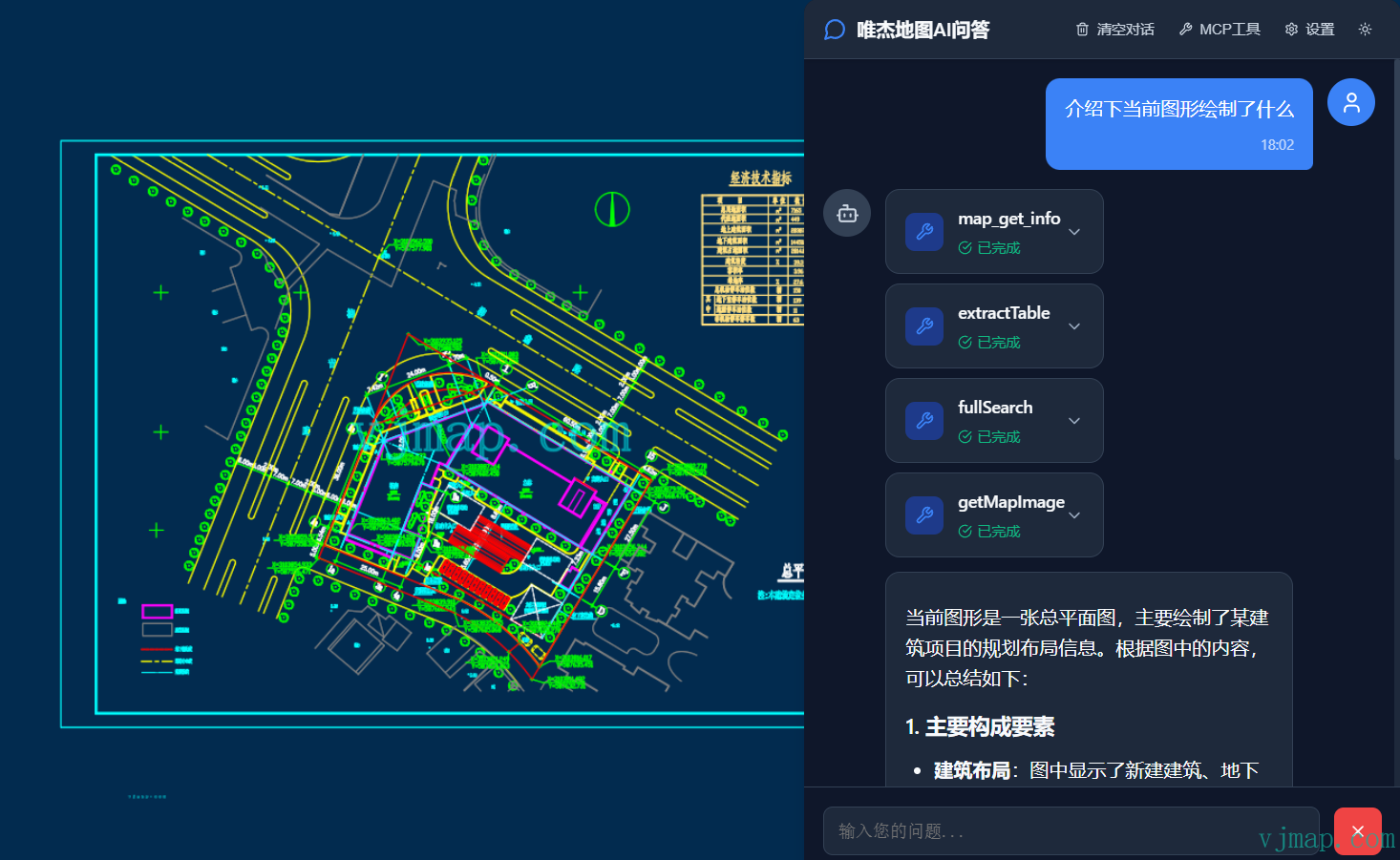
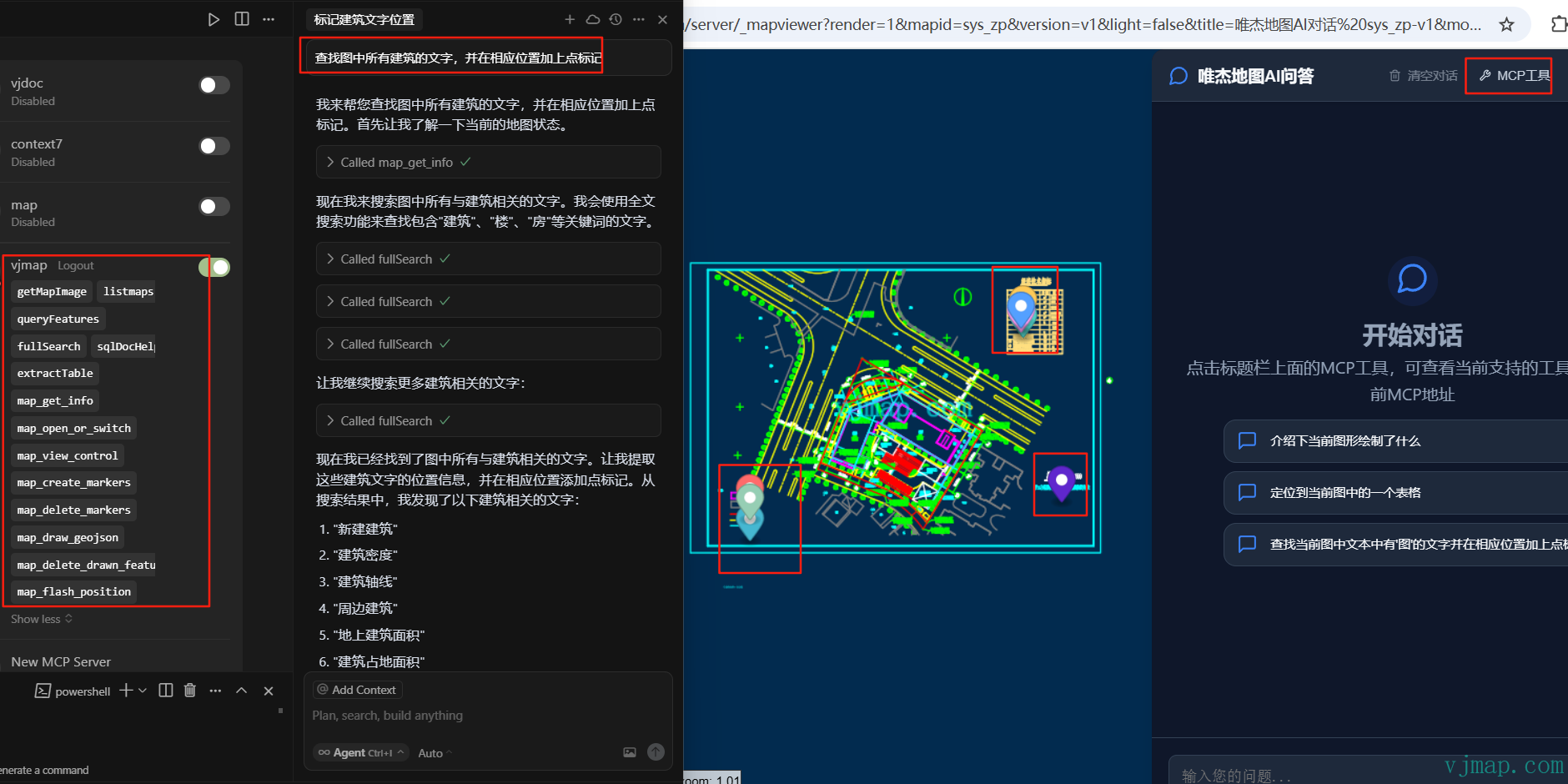
Click the MCP address in the upper-left corner of the interface to view the MCP address for this session.
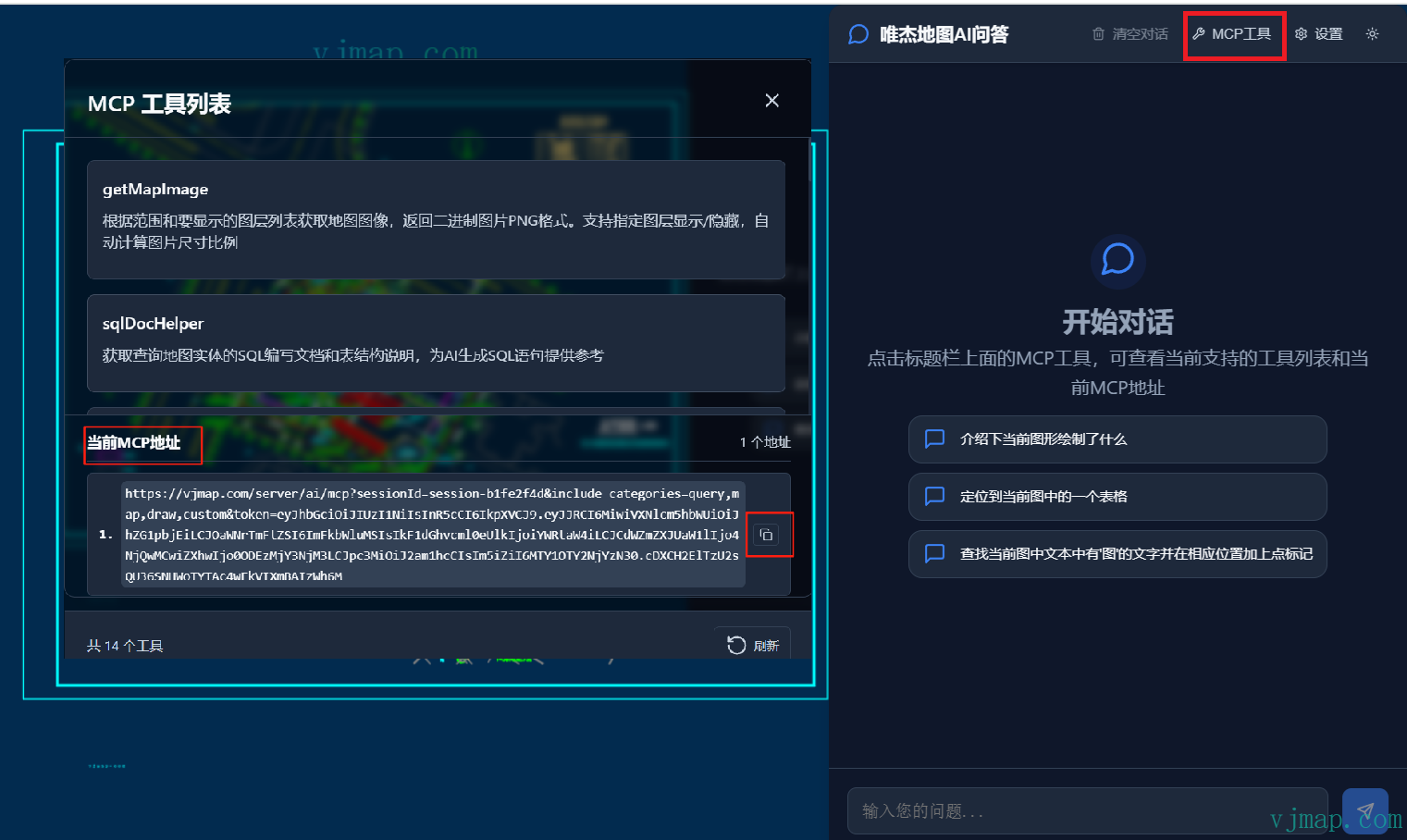
You can copy the current session's MCP address to other MCP clients such as cursor, trae, or cherry studio to ask questions about the current map.
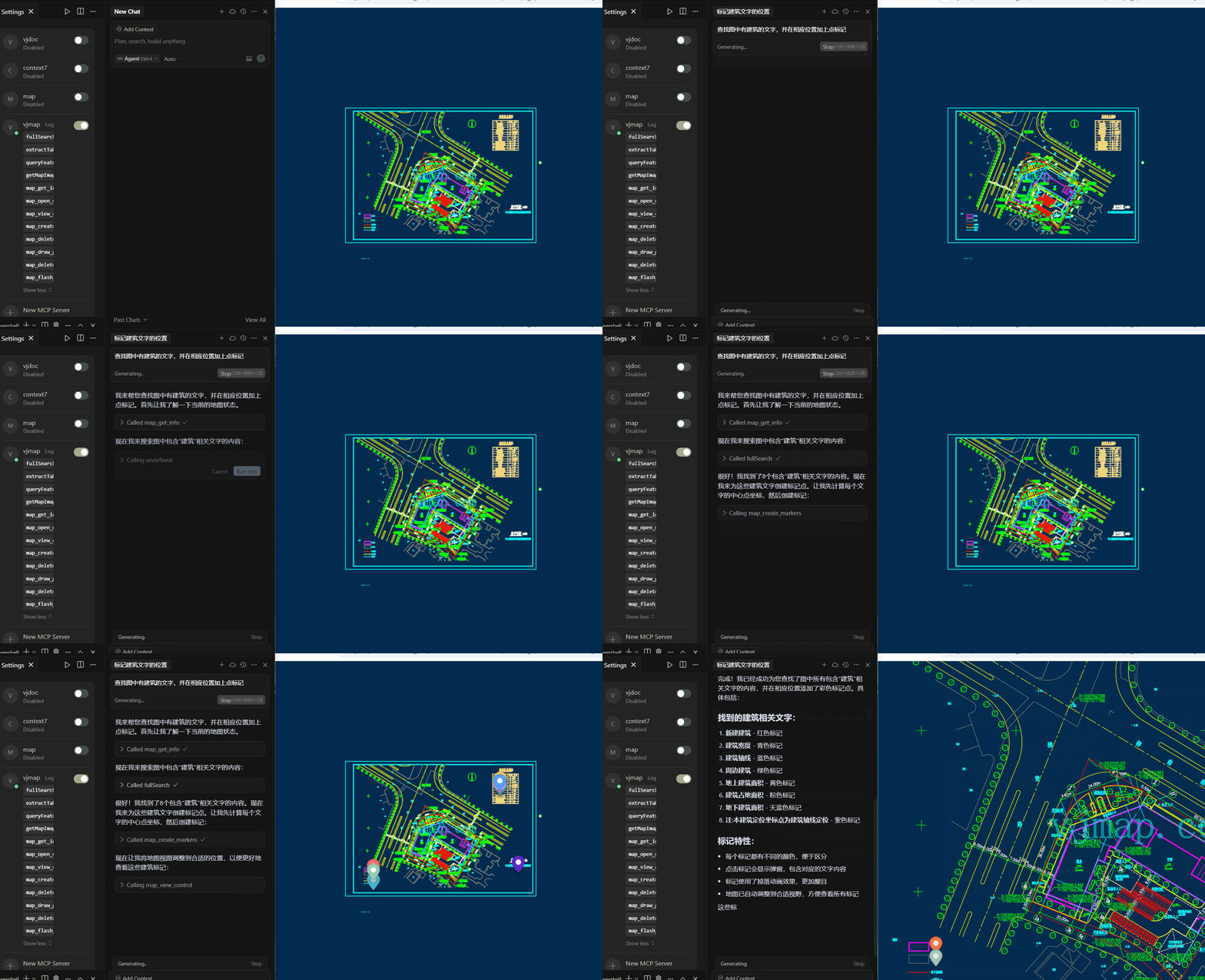
Example of invoking map-related operations via MCP address in cursor:
# MCP Architecture Principles and Flow
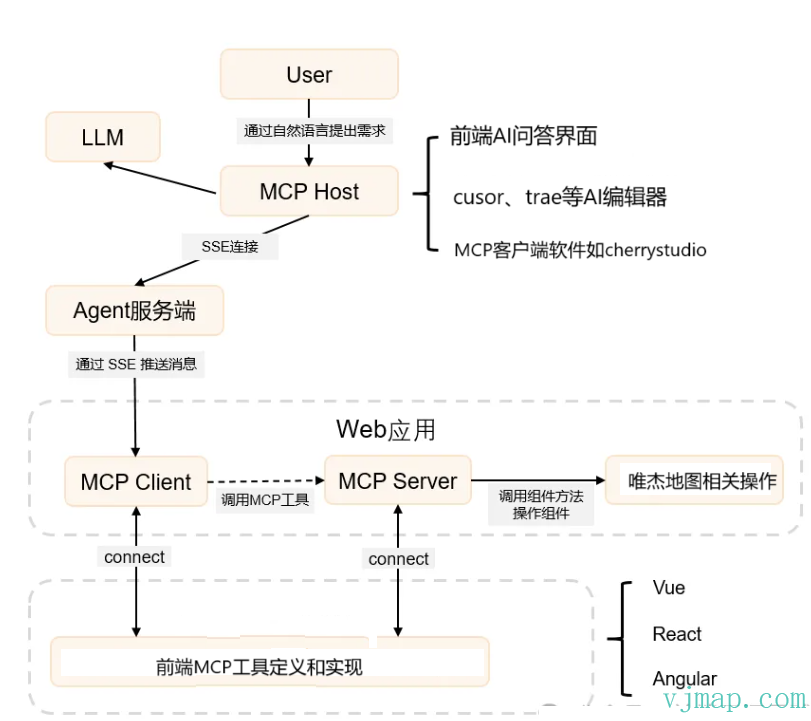
The VJMap MCP system adopts a server-frontend separation architecture and implements bidirectional communication through the MCP (Model Context Protocol). The system supports mixed invocation of server-side tools and frontend tools to implement complex map operations and interactions.
# Overall Architecture
# Backend MCP Tools
| Tool Name | Category | Type | Description | Main Parameters |
|---|---|---|---|---|
| listmaps | map | Backend | Get map list information, supports getting all maps or version information for specified maps | mapid, version, mapIds, workspace, pagination, curPage, pageCount |
| createMap | drawing | Backend | Create new map tool, supports two creation methods: 1. Create map via fileid and mapid; 2. Create via combine into new map API | createType, mapid, fileid, uploadname, geom, sourceMapid, sourceVersion, sourceClipbounds, fourParameter, layers, workspace |
| deletemap | delete | Backend | Delete map function, supports deleting specified version or all versions. Important: Delete operations are irreversible, use with caution! | mapid, version, retainVersionMaxCount, workspace |
| getMapImage | map | Backend | Get map image based on bounds and layer list, returns binary PNG format. Supports layer visibility, auto-calculates image aspect ratio | mapid, version, bounds, pictureWidth, layerOn, layerOff, backgroundColor, transparent, styleName, workspace, returnBase64 |
| fullSearch | query | Backend | CAD drawing full-text search, supports searching text content, layers, block names, etc. | query, map_ver, workspace, type, bounding_box, time_range, limit, offset, fields, facet |
| queryFeatures | query | Backend | Query map entities, supports conditional query, rectangle bounds query, point query, and expression query | mapid, version, queryType, sql, bounds, point, radius, expression, workspace |
| extractTable | query | Backend | Automatically extract table data from CAD drawings. When querying drawing info, call this tool first to extract table data for analysis | mapid, version, bounds, workspace |
| sqlDocHelper | query | Backend | Get SQL writing documentation and table structure for querying map entities, provides reference for AI to generate SQL | No parameters |
| createDwgDocHelper | drawing | Backend | Get parameter description and entity type definition for creating drawings, provides reference for AI to generate graphic entity JSON arrays | No parameters |
# Frontend Tools
| Tool Name | Category | Type | Description | Main Parameters |
|---|---|---|---|---|
| map_get_info | map | Frontend | Get current map details including zoom, center, bearing, pitch, bounds, layer info, workspace name, thumbnail URL. Coordinates use CAD system. | No parameters |
| map_open_or_switch | map | Frontend | Open or switch map based on mapid and version. Updates map context to backend after opening. | mapid, version, isKeepOldLayers, isVectorStyle, isSetCenter, isFitBounds, layeron, layeroff, backcolor |
| map_view_control | map | Frontend | Map view control - zoom, pan, rotate, pitch, zoom to bounds. All coordinates use CAD (x,y) | operation, zoom, center, bearing, pitch, bounds, duration |
| map_execute_code | runcode | Frontend | Execute custom JavaScript for complex map operations (requires VJMap help documentation MCP) | code, description |
| map_draw_geojson | draw | Frontend | Draw features from GeoJSON, supports all standard GeoJSON geometry types. Style in properties | geojsonData |
| map_delete_drawn_features | draw | Frontend | Delete drawn features, supports deleting specified instance or clearing all drawn layers | instanceId, clearAll |
| map_create_markers | draw | Frontend | Create one or more markers from GeoJSON, style from properties, supports custom style, drag, popup | geojsonData |
| map_delete_markers | draw | Frontend | Delete markers on map, supports deleting specified marker or clearing all | markerId, clearAll |
Users can customize business-related MCP tools through the SDK.
# MCP URL Composition
The VJMap MCP system URL supports tool filtering. You can control available tool categories and specific tools through URL parameters.
# URL Format
/ai/mcp?sessionId={sessionId}&include_categories={categories}&exclude_categories={categories}&include_tools={tools}&exclude_tools={tools}&token={token}
Official default MCP URL:
https://vjmap.com/server/ai/mcp?sessionId={sessionId}&include_categories=query,map,draw,custom&token=eyJhbGciOiJIUzI1NiIsInR5cCI6IkpXVCJ9.eyJJRCI6MiwiVXNlcm5hbWUiOiJhZG1pbjEiLCJOaWNrTmFtZSI6ImFkbWluMSIsIkF1dGhvcml0eUlkIjoiYWRtaW4iLCJCdWZmZXJUaW1lIjo4NjQwMCwiZXhwIjo0ODEzMjY3NjM3LCJpc3MiOiJ2am1hcCIsIm5iZiI6MTY1OTY2NjYzN30.cDXCH2ElTzU2sQU36SNHWoTYTAc4wEkVIXmBAIzWh6M
If only backend MCP tools are needed without frontend interaction, sessionId can be left empty:
https://vjmap.com/server/ai/mcp?include_categories=query,map&token=eyJhbGciOiJIUzI1NiIsInR5cCI6IkpXVCJ9.eyJJRCI6MiwiVXNlcm5hbWUiOiJhZG1pbjEiLCJOaWNrTmFtZSI6ImFkbWluMSIsIkF1dGhvcml0eUlkIjoiYWRtaW4iLCJCdWZmZXJUaW1lIjo4NjQwMCwiZXhwIjo0ODEzMjY3NjM3LCJpc3MiOiJ2am1hcCIsIm5iZiI6MTY1OTY2NjYzN30.cDXCH2ElTzU2sQU36SNHWoTYTAc4wEkVIXmBAIzWh6M
# Parameter Description
| Parameter Name | Type | Required | Description | Example |
|---|---|---|---|---|
sessionId | string | Yes | Session ID for current session | session_123456 |
token | string | Yes | Access token for authentication | eyJhbGciOiJIUzI1NiIsInR5cCI6IkpXVCJ9... |
include_categories | string | No | Included tool categories, comma-separated | query,map,drawing |
exclude_categories | string | No | Excluded tool categories, comma-separated | delete,utility |
include_tools | string | No | Included tool names, comma-separated | listmaps,fullSearch |
exclude_tools | string | No | Excluded tool names, comma-separated | deletemap |
# Tool Categories
| Category Name | Category Value | Description | Included Tools |
|---|---|---|---|
| Map Management | map | Basic map CRUD | listmaps, getMapImage, map_get_info, map_open_or_switch, map_view_control |
| Data Query | query | Data query and search | fullSearch, queryFeatures, extractTable, sqlDocHelper |
| Graphic Processing | drawing | Graphic creation and processing | createMap, createDwgDocHelper, map_draw_geojson, map_create_markers |
| Delete Tools | delete | Map deletion | deletemap |
| Drawing Tools | draw | Frontend drawing | map_draw_geojson, map_delete_drawn_features, map_create_markers, map_delete_markers |
| Code Execution | runcode | Code execution | map_execute_code |
| Frontend Custom | custom | Frontend custom category |
# Usage Examples
# Example 1: Include only query and map tools
/ai/mcp?sessionId=session_123456&include_categories=query,map&token=eyJhbGciOiJIUzI1NiIsInR5cCI6IkpXVCJ9...
Note: Only enables query tools and map tools.
# Example 2: Exclude delete tools
/ai/mcp?sessionId=session_123456&exclude_categories=delete&token=eyJhbGciOiJIUzI1NiIsInR5cCI6IkpXVCJ9...
Note: Enables all tools except delete, ensuring users cannot perform delete operations.
# Example 3: Include only specific tools
/ai/mcp?sessionId=session_123456&include_tools=listmaps,fullSearch,map_get_info&token=eyJhbGciOiJIUzI1NiIsInR5cCI6IkpXVCJ9...
Note: Only enables listmaps, fullSearch, map_get_info.
# Example 4: Exclude specific tools
/ai/mcp?sessionId=session_123456&exclude_tools=deletemap,map_execute_code&token=eyJhbGciOiJIUzI1NiIsInR5cCI6IkpXVCJ9...
Note: Excludes deletemap and map_execute_code which may have security risks.
# Example 5: Combined include and exclude
/ai/mcp?sessionId=session_123456&include_categories=query,map&exclude_tools=deletemap&token=eyJhbGciOiJIUzI1NiIsInR5cCI6IkpXVCJ9...
# Notes
- Priority:
include_toolsandexclude_toolshave higher priority thaninclude_categoriesandexclude_categories - Conflicts: If a tool is in both
include_toolsandexclude_tools,exclude_toolstakes precedence - Empty values: If a parameter is empty or not provided, system uses default (enable all tools)
- Security: Use
exclude_categories=deleteorexclude_tools=deletemapin production to prevent accidental deletes - URL encoding: Encode special characters in parameter values
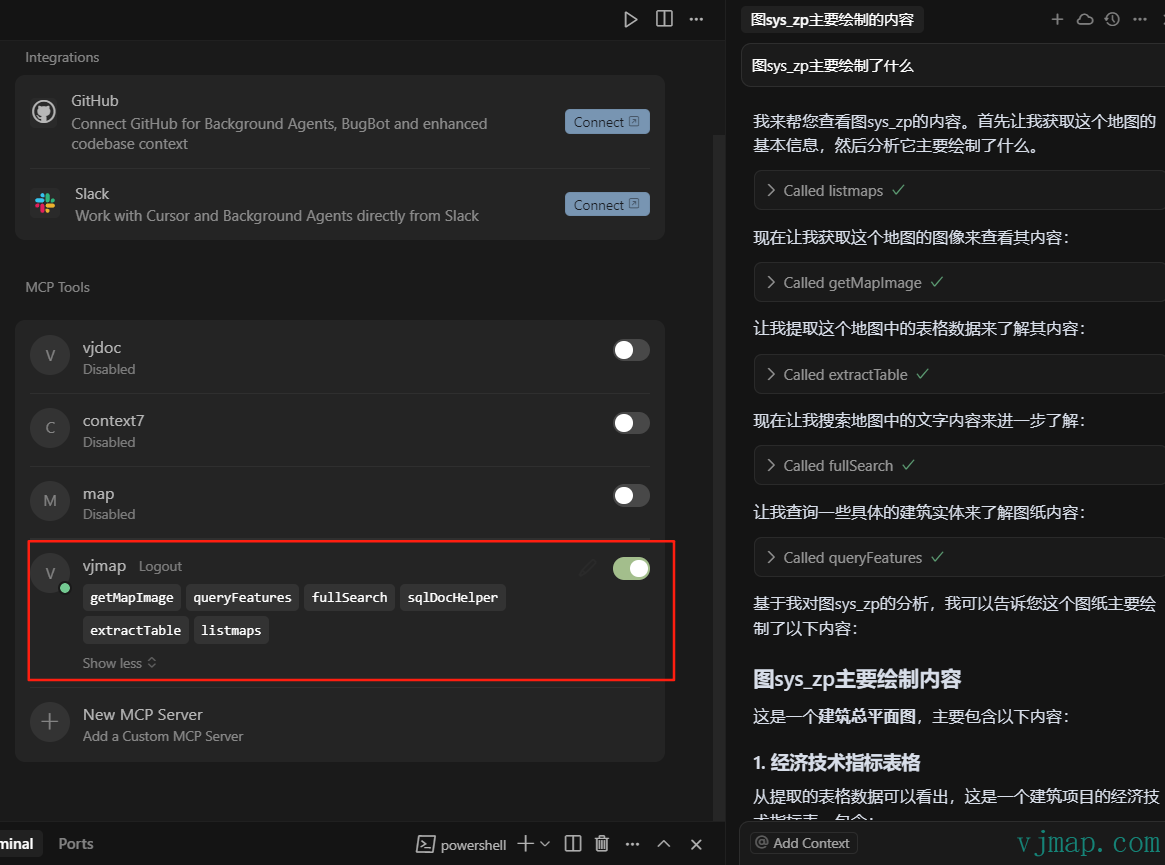
Effect when adding MCP address in cursor for Q&A:
{
  "mcpServers": {
    "vjmap": {
      "url": "https://vjmap.com/server/ai/mcp?include_categories=query,map&token=eyJhbGciOiJIUzI1NiIsInR5cCI6IkpXVCJ9.eyJJRCI6MiwiVXNlcm5hbWUiOiJhZG1pbjEiLCJOaWNrTmFtZSI6ImFkbWluMSIsIkF1dGhvcml0eUlkIjoiYWRtaW4iLCJCdWZmZXJUaW1lIjo4NjQwMCwiZXhwIjo0ODEzMjY3NjM3LCJpc3MiOiJ2am1hcCIsIm5iZiI6MTY1OTY2NjYzN30.cDXCH2ElTzU2sQU36SNHWoTYTAc4wEkVIXmBAIzWh6M"
    }
  }
}
2
3
4
5
6
7
When frontend interaction is needed, copy the MCP address from the MCP tools in the AI dialog.
{
  "mcpServers": {
    "vjmap": {
      "url": "https://vjmap.com/server/ai/mcp?sessionId=session-6323558e&include_categories=query,map,draw,custom&token=eyJhbGciOiJIUzI1NiIsInR5cCI6IkpXVCJ9.eyJJRCI6MSwiVXNlcm5hbWUiOiJyb290MSIsIk5pY2tOYW1lIjoicm9vdDEiLCJBdXRob3JpdHlJZCI6InJvb3QiLCJCdWZmZXJUaW1lIjo4NjQwMCwiZXhwIjoxOTQyMzg5NTc0LCJpc3MiOiJ2am1hcCIsIm5iZiI6MTYyNzAyODU3NH0.l1pP9FXu6ARDaaa-6ma0lp7ftbIk2t6rgmSmTqXry10"
    }
  }
}
2
3
4
5
6
7
Note: sessionId is different for each session; generate the address based on the current session.
# MCP Frontend SDK and Custom Tool Example
<!DOCTYPE html>
<html lang="en">

<head>
    <meta charset="UTF-8">
    <meta name="viewport" content="width=device-width,initial-scale=1">
    <title>vjmap demo</title>
    <link rel="stylesheet" type="text/css" href="https://vjmap.com/server/_demo/js/vjmap/vjmap.min.css">
    <script type="text/javascript" src="https://vjmap.com/server/_demo/js/vjmap/vjmap.min.js"></script>
</head>

<body style=" margin: 0;overflow: hidden;background-color:white;font-size: 16px">
    <div id="map" style="left:0;right:0;top:0;bottom:0;position: absolute;z-index: 0;"></div>
</body>
<script>
    (async () => {
        document.body.style.background = "#022B4F"; // dark background
        const env = {
            serviceUrl: "https://vjmap.com/server/api/v1",
            accessToken: "eyJhbGciOiJIUzI1NiIsInR5cCI6IkpXVCJ9.eyJJRCI6MiwiVXNlcm5hbWUiOiJhZG1pbjEiLCJOaWNrTmFtZSI6ImFkbWluMSIsIkF1dGhvcml0eUlkIjoiYWRtaW4iLCJCdWZmZXJUaW1lIjo4NjQwMCwiZXhwIjo0ODEzMjY3NjM3LCJpc3MiOiJ2am1hcCIsIm5iZiI6MTY1OTY2NjYzN30.cDXCH2ElTzU2sQU36SNHWoTYTAc4wEkVIXmBAIzWh6M",
            exampleMapId: "sys_zp"
        };
        let svc = new vjmap.Service(env.serviceUrl, env.accessToken)
        // Open map
        let res = await svc.openMap({
            mapid: env.exampleMapId, // map ID (ensure it exists or upload to create)
            mapopenway: vjmap.MapOpenWay.GeomRender, // geometry render
            style: vjmap.openMapDarkStyle() // dark style for dark container
        })
        if (res.error) {
            message.error(res.error)
        }
        // Map extent
        let mapExtent = vjmap.GeoBounds.fromString(res.bounds);
        // Create projection
        let prj = new vjmap.GeoProjection(mapExtent);

        // Create map
        let map = new vjmap.Map({
            container: 'map', // container ID
            style: svc.rasterStyle(), // raster tile style
            center: prj.toLngLat(mapExtent.center()), // center
            zoom: 2,
            renderWorldCopies: false
        });
        // Attach service and projection
        map.attach(svc, prj);
        // Fit map bounds
        map.fitMapBounds();
        await map.onLoad(); // wait for map load


        let enableAiMcpChat = true;
        if (enableAiMcpChat) {
            if (typeof VjmapMcpSdk !== "object") {
                let svc = map.getService();
                const _url = svc.baseUrl() + "version";
                // @ts-ignore
                let res = await svc._get(_url, {});
                let version = '';
                if (res && "data" in res) {
                    let data = res["data"];
                    version = data.version
                }
                // Bypass cache when version changes
                // vjchat.umd.js does not bundle vjmap; expose globally
                window.vjmap = vjmap;
                // Load scripts if not present
                await vjmap.addScript([{
                    src: "https://vjmap.com/server/_cloud/lib/vjmap-mcp-sdk.umd.js" + `?ver=${version}`
                }])
                await vjmap.addScript([{
                    src: "https://vjmap.com/server/_cloud/lib/ai-chat-lib.umd.js" + `?ver=${version}`
                }])

                let apiUrl = map.getService().baseUrl();
                let token = map.getService().accessToken;

                // Initialize MCP connection
                console.log('Initializing MCP...')
                let mcpInstance = await VjmapMcpSdk.initializeMCP({
                    apiBase: apiUrl,
                    autoConnect: true,
                    mapInstance: map
                })

                const sessionId = mcpInstance.state.sessionId
                // Register map tools
                await mcpInstance.registerMapTools()

                // Register custom tool example
                await registerCustomTool(mcpInstance, VjmapMcpSdk.z)

                chatContainer = document.createElement('div')
                chatContainer.id = 'ai-chat-container'
                chatContainer.style.cssText = `
                            position: absolute;
                            top: 0;
                            left: 0;
                            width: 100%;
                            height: 100%;
                            pointer-events: none;
                            z-index: 1000;
                        `

                // Allow chat container children to receive events
                const style = document.createElement('style')
                style.textContent = `
                            #ai-chat-container > * {
                            pointer-events: auto !important;
                            }
                        `
                if (!document.head.querySelector('style[data-ai-chat]')) {
                    style.setAttribute('data-ai-chat', 'true')
                    document.head.appendChild(style)
                }
                document.body.appendChild(chatContainer)
                let chatLib = AiChatLib.createAiChatLib({
                    container: chatContainer,
                    apiUrl: apiUrl,
                    token: token,
                    sessionId: sessionId,
                    mcpAddresses: [
                        '{apiUrl}/ai/mcp?sessionId={sessionId}&include_categories=query,map,draw,custom&token={token}'
                    ],
                    systemPrompt: '',
                    quickQuestions: [
                        'Describe what is drawn in the current map',
                        'Locate a table in the current map',
                        "Find text containing 'map' and add point markers at those positions"
                    ],
                    maxHistoryCount: 10,
                    window: {
                        width: 500,
                        height: 780,
                        right: 3,
                        theme: 'dark',
                        draggable: true,
                        title: 'VJMap AI Q&A'
                    },
                    debug: true,
                    autoFocus: true
                })
            }
        }
    })();

    // flashPos implementation
    const flashPos = (bounds) => {
        map.fitMapBounds(vjmap.GeoBounds.fromArray(bounds), { padding: 300 })
        return new Promise((resolve) => {
            const routePath = vjmap.GeoBounds.fromArray(bounds).toPointArray();
            routePath.push(routePath[0])
            let geoLineDatas = [];
            geoLineDatas.push({
                points: map.toLngLat(routePath),
                properties: {
                    opacity: 1.0
                }
            })

            let polylines = new vjmap.Polyline({
                data: geoLineDatas,
                lineColor: 'yellow',
                lineWidth: 3,
                lineOpacity: ['get', 'opacity'],
                isHoverPointer: false,
                isHoverFeatureState: false
            });
            polylines.addTo(map);

            vjmap.createAnimation({
                from: 1,
                to: 10,
                duration: 1000,
                onUpdate: (e) => {
                    const data = polylines.getData();
                    if (data && data.features && data.features[0]) {
                        data.features[0].properties.opacity = parseInt(e.toString()) % 2 ? 1.0 : 0;
                        polylines.setData(data);
                    }
                },
                onStop: () => {
                    polylines.remove()
                    resolve({})
                },
                onComplete: () => {
                    polylines.remove()
                    resolve({})
                }
            })
        })
    }

    // Register custom tool example
    async function registerCustomTool(mcpInstance, z) {
        if (!mcpInstance) return

        // Define tool input schema with zod
        const inputSchema = z.object({
            bounds: z.array(z.number()).length(4).describe('Bounds array [minX, minY, maxX, maxY]')
        })

        // Create tool definition
        const tool = VjmapMcpSdk.createTool(
            'map_flash_position',
            'Flash the given bounds on the map',
            inputSchema,
            'custom'
        )

        // Tool handler
        const handler = async (args) => {
            try {
                const validatedArgs = inputSchema.parse(args)
                const { bounds } = validatedArgs

                await flashPos(bounds)

                return {
                    content: [{
                        type: 'text',
                        text: `Flashed bounds on map: [${bounds.join(', ')}]`
                    }]
                }
            } catch (error) {
                return {
                    content: [{
                        type: 'text',
                        text: `Tool failed: ${error instanceof Error ? error.message : String(error)}`
                    }],
                    isError: true
                }
            }
        }

        mcpInstance.registerTool(tool, handler, "custom")

        // Register tool on server so backend can see it
        try {
            const serviceManager = mcpInstance.getServiceManager()
            if (serviceManager) {
                await serviceManager.registerToolsToServer()
                console.log('Custom tool registered on server')
            }
        } catch (error) {
            console.error('Failed to register custom tool on server:', error)
        }
    }


</script>

</html>
2
3
4
5
6
7
8
9
10
11
12
13
14
15
16
17
18
19
20
21
22
23
24
25
26
27
28
29
30
31
32
33
34
35
36
37
38
39
40
41
42
43
44
45
46
47
48
49
50
51
52
53
54
55
56
57
58
59
60
61
62
63
64
65
66
67
68
69
70
71
72
73
74
75
76
77
78
79
80
81
82
83
84
85
86
87
88
89
90
91
92
93
94
95
96
97
98
99
100
101
102
103
104
105
106
107
108
109
110
111
112
113
114
115
116
117
118
119
120
121
122
123
124
125
126
127
128
129
130
131
132
133
134
135
136
137
138
139
140
141
142
143
144
145
146
147
148
149
150
151
152
153
154
155
156
157
158
159
160
161
162
163
164
165
166
167
168
169
170
171
172
173
174
175
176
177
178
179
180
181
182
183
184
185
186
187
188
189
190
191
192
193
194
195
196
197
198
199
200
201
202
203
204
205
206
207
208
209
210
211
212
213
214
215
216
217
218
219
220
221
222
223
224
225
226
227
228
229
230
231
232
233
234
235
236
237
238
239
240
241
242
243
244
245
246
247
248
249
250
251
252
253
254
255
In the above code, ai-chat-lib.umd.js is the AI chat UI library.
In the above code, vjmap-mcp-sdk.umd.js is the vjmap MCP SDK library. It is mainly used for server communication and provides interfaces for users to customize tools. This library can also be installed via npm. Usage is as follows:
# VJMap MCP SDK Installation
npm install vjmcpsdk
# VJMap MCP SDK Usage
import vjmap from vjmap
import { initializeMCP, createTool, z } from vjmcpsdk

let apiUrl = map.getService().baseUrl();
let token = map.getService().accessToken;

let mcpInstance = await initializeMCP({
    apiBase: apiUrl,
    autoConnect: true,
    mapInstance: map
})

const sessionId = mcpInstance.state.sessionId
await mcpInstance.registerMapTools()
await registerCustomTool(mcpInstance, z)

// flashPos function implementation
const flashPos = (bounds) => {
    map.fitMapBounds(vjmap.GeoBounds.fromArray(bounds), { padding: 300 })
    return new Promise((resolve) => {
        const routePath = vjmap.GeoBounds.fromArray(bounds).toPointArray();
        routePath.push(routePath[0])
        let geoLineDatas = [];
        geoLineDatas.push({
            points: map.toLngLat(routePath),
            properties: { opacity: 1.0 }
        })
        let polylines = new vjmap.Polyline({
            data: geoLineDatas,
            lineColor: 'yellow',
            lineWidth: 3,
            lineOpacity: ['get', 'opacity'],
            isHoverPointer: false,
            isHoverFeatureState: false
        });
        polylines.addTo(map);
        vjmap.createAnimation({
            from: 1,
            to: 10,
            duration: 1000,
            onUpdate: (e) => {
                const data = polylines.getData();
                if (data && data.features && data.features[0]) {
                    data.features[0].properties.opacity = parseInt(e.toString()) % 2 ? 1.0 : 0;
                    polylines.setData(data);
                }
            },
            onStop: () => { polylines.remove(); resolve({}) },
            onComplete: () => { polylines.remove(); resolve({}) }
        })
    })
}

async function registerCustomTool(mcpInstance, z) {
    if (!mcpInstance) return
    const inputSchema = z.object({
        bounds: z.array(z.number()).length(4).describe('Bounds array [minX, minY, maxX, maxY]')
    })
    const tool = createTool(
        'map_flash_position',
        'Flash the given bounds on the map',
        inputSchema,
        'custom'
    )
    const handler = async (args) => {
        try {
            const validatedArgs = inputSchema.parse(args)
            const { bounds } = validatedArgs
            await flashPos(bounds)
            return {
                content: [{ type: 'text', text: `Flashed bounds on map: [${bounds.join(', ')}]` }]
            }
        } catch (error) {
            return {
                content: [{ type: 'text', text: `Tool failed: ${error instanceof Error ? error.message : String(error)}` }],
                isError: true
            }
        }
    }
    mcpInstance.registerTool(tool, handler, "custom")
    try {
        const serviceManager = mcpInstance.getServiceManager()
        if (serviceManager) {
            await serviceManager.registerToolsToServer()
            console.log('Custom tool registered on server')
        }
    } catch (error) {
        console.error('Failed to register custom tool on server:', error)
    }
}
2
3
4
5
6
7
8
9
10
11
12
13
14
15
16
17
18
19
20
21
22
23
24
25
26
27
28
29
30
31
32
33
34
35
36
37
38
39
40
41
42
43
44
45
46
47
48
49
50
51
52
53
54
55
56
57
58
59
60
61
62
63
64
65
66
67
68
69
70
71
72
73
74
75
76
77
78
79
80
81
82
83
84
85
86
87
88
89
90
# Backend Configuration
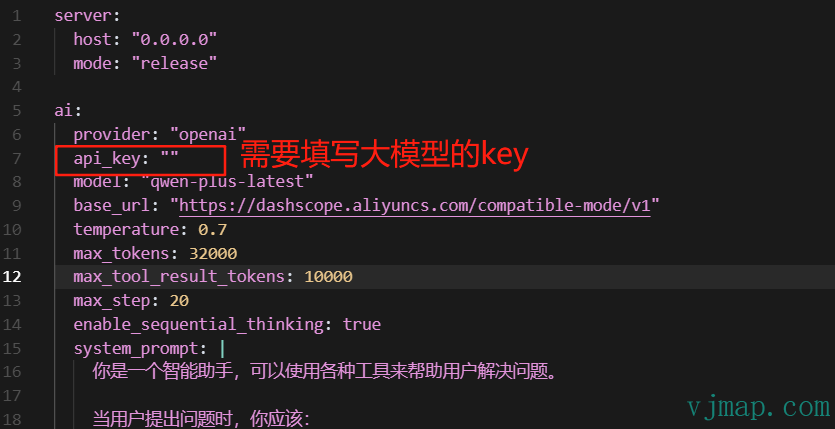
Configure in data/ai/aisvr_config.yaml in the backend data directory.