
# FAQ
# How to View Documentation and Examples
- Quick Start: https://vjmap.com/guide/quickstart.html (opens new window)
- Simple development examples (Vue, React, HTML): https://vjmap.com/guide/downloaddemo.html (opens new window)
- Engineering development with complex interactions - reference source: https://vjmap.com/app/cloud (opens new window)
- Application scenarios and effect demos: https://vjmap.com/demo (opens new window)
- VJMap 3D (opens new window)
# VJMap System Architecture
VJMap uses a B/S (Browser/Server) architecture.
Core server functions include parsing and opening DWG files, saving spatial data, and generating raster and vector tile rendering data.
The server supports cross-platform private deployment (Linux Docker recommended) and can run in air-gapped environments.
The free trial on the official site has the same features as the full version but includes a watermark. For watermark removal and commercial private deployment, please contact support.
Map-related server functionality generally does not require custom development. For custom data access and storage, you can implement your own server logic in any language.
For the frontend SDK, you can either include the stylesheet and script in HTML:
<link rel="stylesheet" type="text/css" href="https://vjmap.com/demo/js/vjmap/vjmap.min.css">
<script type="text/javascript" src="https://vjmap.com/demo/js/vjmap/vjmap.min.js"></script>
Or install the npm package: npm install vjmap
You use the SDK to build your own features and integrate them into your system. Development can be done with vanilla JS, React, or Vue (example: Download (opens new window)). Mobile is supported; for native apps, use a WebView with H5.
# Is VJMap Free?
VJMap offers a free trial with a watermark, file size limits, and data that may be cleared periodically. Feature set matches the full version. For watermark removal and private deployment on your own server, there is a fee (including air-gapped deployment). Contact support for pricing.
WeChat support: 
# How to Open CAD Drawings
There are four ways to open CAD drawings:
Upload DWG via the SDK
Service.uploadMapmethod: Example (opens new window)Open from an accessible HTTP URL: Example (opens new window)
If the CAD file and server are on the same machine, open via local path: Example (opens new window)
For new drawings, pass JSON data to create the map: Example (opens new window)
# Is Mobile Supported?
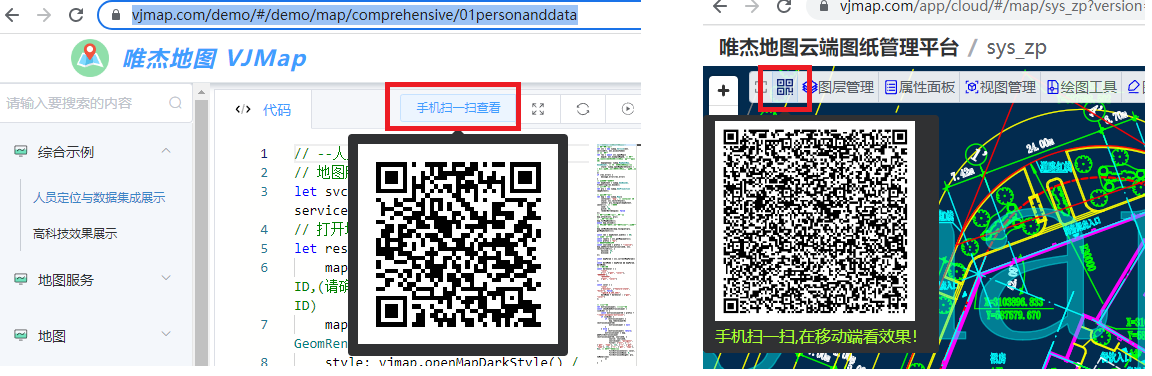
VJMap fully supports mobile viewing. Each example and the cloud platform include a QR code for scanning and viewing on mobile.
# Can I Use Third-Party Open-Source GIS Libraries?
VJMap supports loading CAD maps with OpenLayers, Leaflet, and maptalks:
- OpenLayers: https://vjmap.com/demo/#/demo/map/openlayers/01olraster (opens new window)
- Leaflet: https://vjmap.com/demo/#/demo/map/leaflet/01leafletraster (opens new window)
- maptalks: https://vjmap.com/demo/#/demo/map/maptalks/01maptalksraster (opens new window)
# Can I Edit CAD Drawings?
VJMap supports editing CAD drawings, but the focus is on GIS display and visualization; editing capabilities are more limited.
For full edit support (delete, modify, add, export CAD), see:
https://vjmap.com/demo/#/demo/map/comprehensive/05drawcadedit (opens new window)
Editing approaches:
Edit the original CAD: Add, modify, or delete entities. Saving creates a new version. Example: https://vjmap.com/demo/#/demo/map/service/05zfrommap (opens new window)
Modify display via style: Change how the CAD is displayed without changing source data; better performance. Example: https://vjmap.com/demo/#/demo/map/service/05zgmodifymap (opens new window)
Style-based modification works as follows:
(1) The server controls rendering via styles. You can use expression syntax to show/hide or change colors for specific layers or entities. This creates a new style name. Specify this style when opening the map so tiles reflect your changes.
(2) Add a drawing layer on the client to draw points, lines, polygons, etc. Combine server style control with client drawing to achieve the desired result.
For your own uploaded drawings, open them in the VJMap Cloud Platform and use More Drawing Tools in the toolbar.
# How to Restrict Users or Groups to Their Own Maps?
VJMap is a map development platform and provides map-related services only. It does not manage your business users or passwords. For map service access control, see: VJMap Frontend CAD GIS Data Access Control (opens new window).
To restrict users or groups to their own maps, integrate VJMap with your business system.
Approach:
(1) User login in your business system
(2) After login, associate uploaded map names with the user and user group
Example:
User
user1in groupadminuploads mapsns_map1,ns_map2.User
user2in groupadminuploads mapsns_cad3,ns_cad4.Store this in a table:
| Map ID | User Group | Upload User | Upload Time | File Name | Thumbnail | Open Method |
|---|---|---|---|---|---|---|
| ns_map1 | admin | user1 | ||||
| ns_map1 | admin | user1 | ||||
| ns_cad3 | admin | user2 | ||||
| ns_cad4 | admin | user2 |
- (3) When
user1views maps, query your backend for maps belonging touser1(ns_map1,ns_map2) and show only those. - (4) If users can see all maps in their group, query for group
adminand showns_map1,ns_map2,ns_cad3,ns_cad4. - (5) To prevent users from listing other users’ maps via the VJMap admin or
vjmap.Service.listMaps, set uploaded maps tohidden. Hidden maps are not returned by default list APIs. Use map names starting withns_to hide them. For custom prefixes, addmap_list_exclude_prefixunder themapsection inconfig.json, e.g.ts_;ns_;test_to hide maps starting withts_,ns_, ortest_. - (6) Open maps with
vjmap.Service.openMapby map name. Hidden maps open the same way; the only difference is they are excluded fromvjmap.Service.listMaps.
TIP
For data isolation between user groups, use workspaces. Create a workspace per group; data is isolated between workspaces. Example: https://vjmap.com/demo/#/demo/map/service/07mapWorkspace (opens new window)
# Do Custom Fonts in CAD Show as Garbled or Question Marks?
The VJMap server includes common fonts. If a custom font in your CAD is not available, it is replaced with a default font to avoid question marks or garbled text. Appearance may differ (e.g. size). For exact display, copy the custom font to the server font directory data/fonts.
For online font replacement:
- (1) Open the CAD file and check the font style name for the problematic font, e.g. "tssdeng.shx"
- (2) Open the same file in VJMap; the
findFontsfield in the openMap response shows the replacement rules, e.g.{"tssdeng.shx_1":"tssdeng.shx"} - (3) Delete the previously uploaded map and re-upload it in the cloud platform
- (4) In More Settings, set Font Replacement Rules, e.g.
{"tssdeng.shx_1": "_default_.ttc"} - (5) Optionally rename the map ID to avoid cache, then open the map
If the above is too cumbersome, you can replace all fonts with the default: in More Settings, set {"*":"_default_.ttc"}. This uses the same font for everything.
# How to Upload and Open Maps on the Server
On the server, use the VJMap REST API to upload and open maps. You can inspect request parameters in the browser Network tab (F12).
Node.js example:
// app.js
const fs = require('fs')
const FormData = require('form-data')
const axios = require('axios')
const prompt = require('prompt');

(async ()=>{
    const defaultServiceUrl = 'https://vjmap.com/server/api/v1';
    const defaultAccessToken = 'eyJhbGciOiJIUzI1NiIsInR5cCI6IkpXVCJ9.eyJJRCI6MiwiVXNlcm5hbWUiOiJhZG1pbjEiLCJOaWNrTmFtZSI6ImFkbWluMSIsIkF1dGhvcml0eUlkIjoiYWRtaW4iLCJCdWZmZXJUaW1lIjo4NjQwMCwiZXhwIjo0ODEzMjY3NjM3LCJpc3MiOiJ2am1hcCIsIm5iZiI6MTY1OTY2NjYzN30.cDXCH2ElTzU2sQU36SNHWoTYTAc4wEkVIXmBAIzWh6M';

    let formData = new FormData();
    let { filepath } =  await prompt.get('filepath'); // Enter file path to upload
    if (!filepath) return;
    let file = fs.createReadStream(filepath)
    formData.append('fileToUpload', file);

    let len = await new Promise((resolve, reject) => {
      return formData.getLength((err, length) => (err ? reject(err) : resolve(length)));
    });
    let res = await axios({
        url: `${defaultServiceUrl}/map/uploads?token=${defaultAccessToken}`,
        method: 'POST',
        data: formData,
        headers: {
          ...formData.getHeaders(),
          'Content-Length': len,
        },
    });
    /*
    {
        fileid: 'c036d8ca23eb',
        mapid: 'c036d8ca23eb', // mapid is suggested mapid; if opened before, uses previous mapid
        uploadname: 'base1.dwg'
    }
    */
    console.log(res.data);

    // Upload only stores the file; first openMap should use fileid, then assign a mapid. Later opens can use mapid directly
    let { mapid } =  await prompt.get('mapid'); // Enter mapid
    if (!mapid) {
        // If no mapid, use default from upload response
        mapid = res.data.mapid;
    }
    let result = await axios({
        url: `${defaultServiceUrl}/map/openmap/${res.data.mapid}?version=&layer=&geom=true&fileid=${res.data.fileid}&uploadname=${res.data.uploadname}&mapfrom=&mapdependencies=&subfrom=&subdependencies=&stylename=&layeron=&layeroff=&clipbounds=&bkcolor=0&lineweight=&expression=`,
        method: 'GET',
        headers: {
          token: defaultAccessToken,
        },
    });
    console.log(result)

    // To check if processing is complete, poll status every few seconds
    let result2 = await axios({
        url: `${defaultServiceUrl}/map/cmd/listmaps/${result.data.mapid}/${result.data.version}`,
        method: 'GET',
        headers: {
            token: defaultAccessToken,
        },
    });
    console.log(result2)
    // result2.status "working" = processing; "error" = error; "finish" = complete
})();
2
3
4
5
6
7
8
9
10
11
12
13
14
15
16
17
18
19
20
21
22
23
24
25
26
27
28
29
30
31
32
33
34
35
36
37
38
39
40
41
42
43
44
45
46
47
48
49
50
51
52
53
54
55
56
57
58
59
60
61
62
63
# Map Displays as a Small Dot
# Fix in VJMap Cloud Platform
- Go to https://vjmap.com/app/cloud (opens new window)
- Open the map, then use More → Select Crop Area to Create New Map
- Draw a box around the desired area, then rename the new map on the next page
- Optionally delete the old map
# Fix in CAD
- Double-click the mouse wheel to zoom to extents
- If you only see a few dots, there are objects far away; remove them
- Press Ctrl+A to select all, then Shift+drag to deselect the area you want to keep, and press Delete to remove the rest (if you can’t delete, layers may be frozen or locked—unfreeze/unlock them)
- Double-click the mouse wheel again to zoom to extents; the view should be correct. Save the file
# How to Overlay Data from Another Coordinate System on the Current CAD Map
- If the other coordinate system matches the CAD map, use the data directly without conversion.
- If they differ and you don’t know the relationship, use the four-parameter method (accuracy depends on control points; more accurate points give smaller error). Example:
// Points on the CAD map
let cadPoints = [
    vjmap.geoPoint([39760.07407, 237424.52134]),
    vjmap.geoPoint([39006.60468, 237808.49494749]),
    vjmap.geoPoint([38823.92918, 235003.98994]),
    vjmap.geoPoint([37885.55424, 235452.80893])
];

// Corresponding points in the other coordinate system
let otherPoints = [
    vjmap.geoPoint([113.292983, 23.206979]),
    vjmap.geoPoint([113.285631, 23.210304]),
    vjmap.geoPoint([113.283897, 23.185047]),
    vjmap.geoPoint([113.274716, 23.188962])
]

// Compute four-parameter transformation
let fourparam = vjmap.coordTransfromGetFourParamter(otherPoints, cadPoints, false);

// Convert other-system points to CAD and compare with original to check error
for(let i = 0; i< otherPoints.length; i++) {
    const cadpt = vjmap.coordTransfromByFourParamter(otherPoints[i], fourparam);
    console.log("Original point:", cadPoints[i], "Computed:", cadpt, "Error:", cadPoints[i].distanceTo(cadpt))
}

// Example: convert [113.292983, 23.206979] to CAD coordinates
const cadpt = vjmap.coordTransfromByFourParamter(vjmap.geoPoint([113.292983, 23.206979]), fourparam);
console.log(cadpt)
// {x: 39792.49478817663, y: 237432.04509891104}

// Inverse: CAD point to other coordinate system
const otherpt = vjmap.coordTransfromByInvFourParamter(cadpt, fourparam);
console.log(otherpt)
// {x: 113.29298300000002, y: 23.206979


// Note: Four-parameter applies to translation, rotation, and scale. For horizontal/vertical flip, transform first, then apply four-parameter.
2
3
4
5
6
7
8
9
10
11
12
13
14
15
16
17
18
19
20
21
22
23
24
25
26
27
28
29
30
31
32
33
34
35
36
37