# Full-Text Search
In manufacturing, architectural design, engineering management and related fields, CAD drawings are core assets, but managing and retrieving massive numbers of drawings has long faced three major pain points:
Full-text retrieval is difficult: Traditional methods require opening drawings one by one for manual search, which is time-consuming and labor-intensive;
Similar drawing matching is inefficient: Designers often need to reuse historical drawings, but manual comparison has high error rates;
Precise search depends on experience: Non-professionals struggle to quickly locate drawing content through vague descriptions.
To address this, VJMAP (opens new window) https://vjmap.com offers three intelligent search solutions:
CAD Drawing Instant Search: Based on modern full-text search and indexing engines, second-level retrieval of all text, layers, block names, linetype names, etc. in drawings, with support for multi-condition combined queries;Similarity Search: Uses SIFT algorithm and deep learning models to extract geometric features and topological structure for precise similar drawing matching;AI Semantic Search: Uses large models to parse natural language instructions (e.g. "find red circles with radius 10") and directly returns matching entities in the drawing.
Through these three technologies, drawings are transformed from "sleeping archives" into "conversational data assets."
# I. CAD Drawing Instant Search
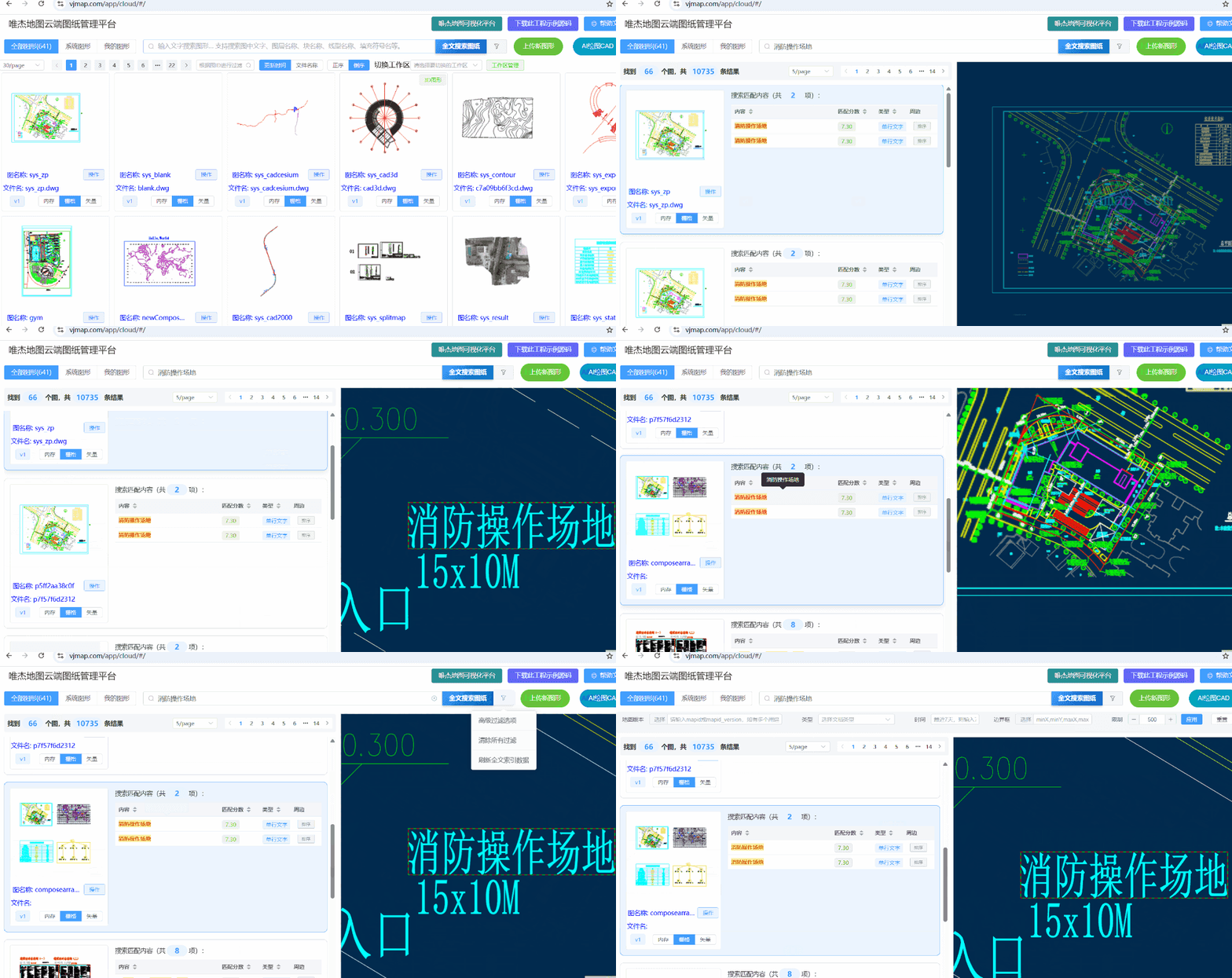
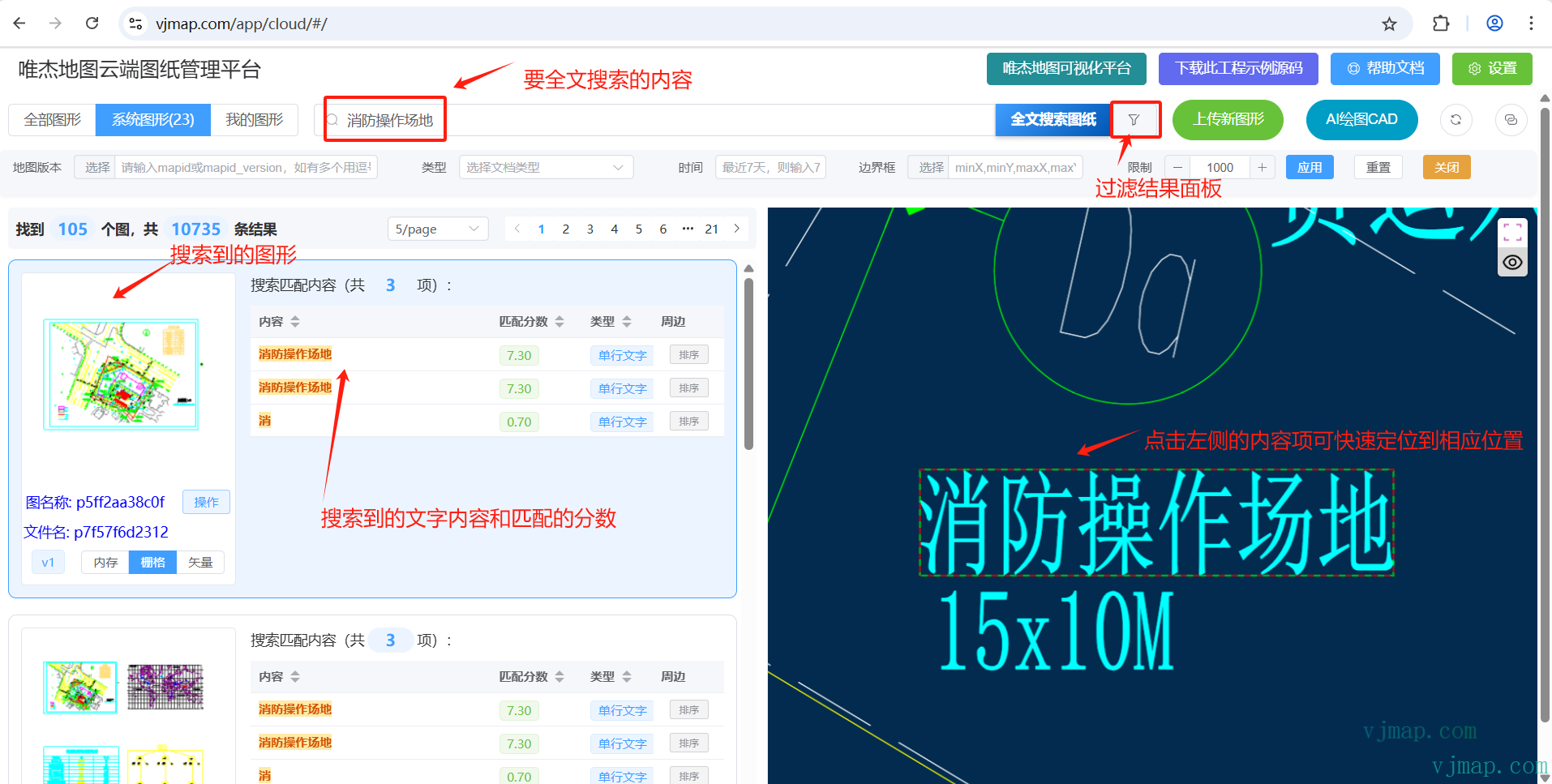
Enter VJMAP Cloud Management Platform (opens new window) and type your query in the search box to instantly search all related drawings. Results are presented in a combined text and image format.
# 1.1 Search Entry
- Enter search content in the search box in the top navigation bar
- Supports searching
text in drawings,layer names,block names,linetype names,hatch pattern names, etc.
# 1.2 Search Suggestions
- Real-time search suggestions appear as you type
- Click a suggestion to quickly fill the search content
# 1.3 Advanced Filter
- Click the filter icon to the right of the search box
- Select "Advanced Filter Options" from the dropdown menu
# 1.4 Filter Condition Description
Map Version
- Enter mapid or mapid_version
- Multiple versions separated by commas
- Click "Select" to choose from map list
Document Type
- Supports multiple types:
- Single-line text (1)
- Multiline text (2)
- Attribute definition (3)
- Block attribute (4)
- Layer (5)
- Block name (6)
- Linetype name (7)
- Hatch pattern name (8)
- User custom (9)
- Multiple selection supported
- Supports multiple types:
Time Range
- Two formats:
- Days: e.g. "7" for last 7 days
- Date range: e.g. "2024-01-01~2024-01-31"
- Two formats:
Bounding Box
- Format: minX,minY,maxX,maxY
- Click "Select" to choose range on map; use to query text in same range across all drawings
Result Limit
- Set maximum number of results
- Range: 1-10000
- Default: 1000
# 1.5 Refresh Index
- Select "Refresh Full-Text Index Data" from the filter dropdown menu
- Used to update search index so results are current
# 1.6 Clear Filters
- Select "Clear All Filters" from the filter dropdown menu
- Quickly clear all filter conditions
# 1.7 Usage Tips
- Separate multiple keywords with spaces for combined search
- Click the "Sort" button on a result item to set it as reference point; other results show distance to that point and can be sorted by distance
# 1.8 Backend Configuration
Drawing Full-Text Search Configuration
Full-text search across all drawings by keyword. Default config in config.json:
"fullsearch": {
    "disable": false,
    "disable_index_hidden_maps": false,
    "disable_index_password_protected_maps": true,
    "disable_default_workspace": false,
    "batch_size": 1000,
    "sync_delay_minutes": 0,
    "cron_fullsearch_hour": 5,
    "linetype_max_num": 50,
    "pattern_max_num": 50
}
2
3
4
5
6
7
8
9
10
11
Item descriptions:
- disable: Whether to disable full-text search, default false. (Note: full-text search is enabled by default)
- disable_index_hidden_maps: Whether to index hidden maps, default false
- disable_index_password_protected_maps: Whether to index password-protected maps, default true
- disable_default_workspace: Whether to index default workspace drawings, default false. Note: Workspace indexing can be configured in workspace management
- batch_size: Batch size, default 1000
- sync_delay_minutes: When map is updated, delay in minutes before auto-indexing. 0 = no index update on map change. 3 = auto-update index 3 minutes after map update. Default 0
- cron_fullsearch_hour: Scheduled full index sync time, default 5 (5 AM). -1 = no scheduled sync
- linetype_max_num: Skip indexing above this linetype symbol count, default 50
- pattern_max_num: Skip indexing above this hatch pattern count, default 50
Note: Default full-text index strategy: full-text search enabled, auto sync at 5 AM. For real-time index updates set sync_delay_minutes to 2 (official example uses 2). Or when map is updated, use "Refresh Full-Text Index Data" in the Cloud Management Platform full-text search menu to sync index.
# II. CAD Drawing Similarity Matching
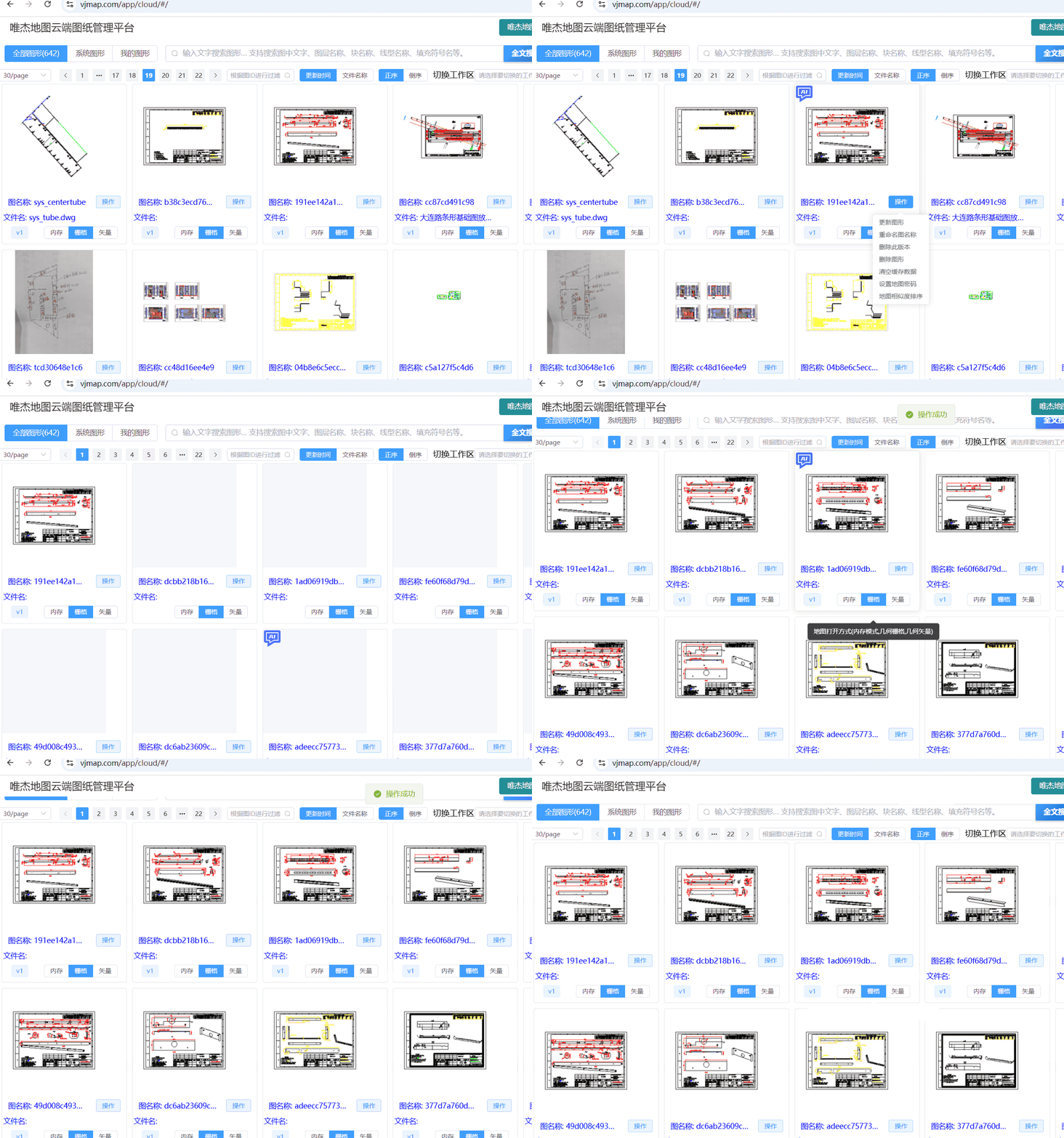
Image similarity matching uses vectorization, mainly in three steps: feature extraction, vector representation, and similarity computation.
- Feature Extraction Converting images to high-dimensional feature vectors is the basis. Common methods: Traditional: SIFT (Scale-Invariant Feature Transform), SURF (Speeded Up Robust Features), ORB (Oriented FAST), etc., extracting local keypoints and descriptors. Deep learning: CNN (Convolutional Neural Network) for global or local features with semantic information.
- Vector Representation Vectorization: Integrate extracted features into fixed-length vectors
- Similarity Computation Compare vectors by distance or similarity: Euclidean distance: Straight-line distance between vectors, for spatial distribution similarity Cosine similarity: Direction consistency of vectors Hamming distance: For binary hash vectors (e.g. perceptual hash), count differing bits
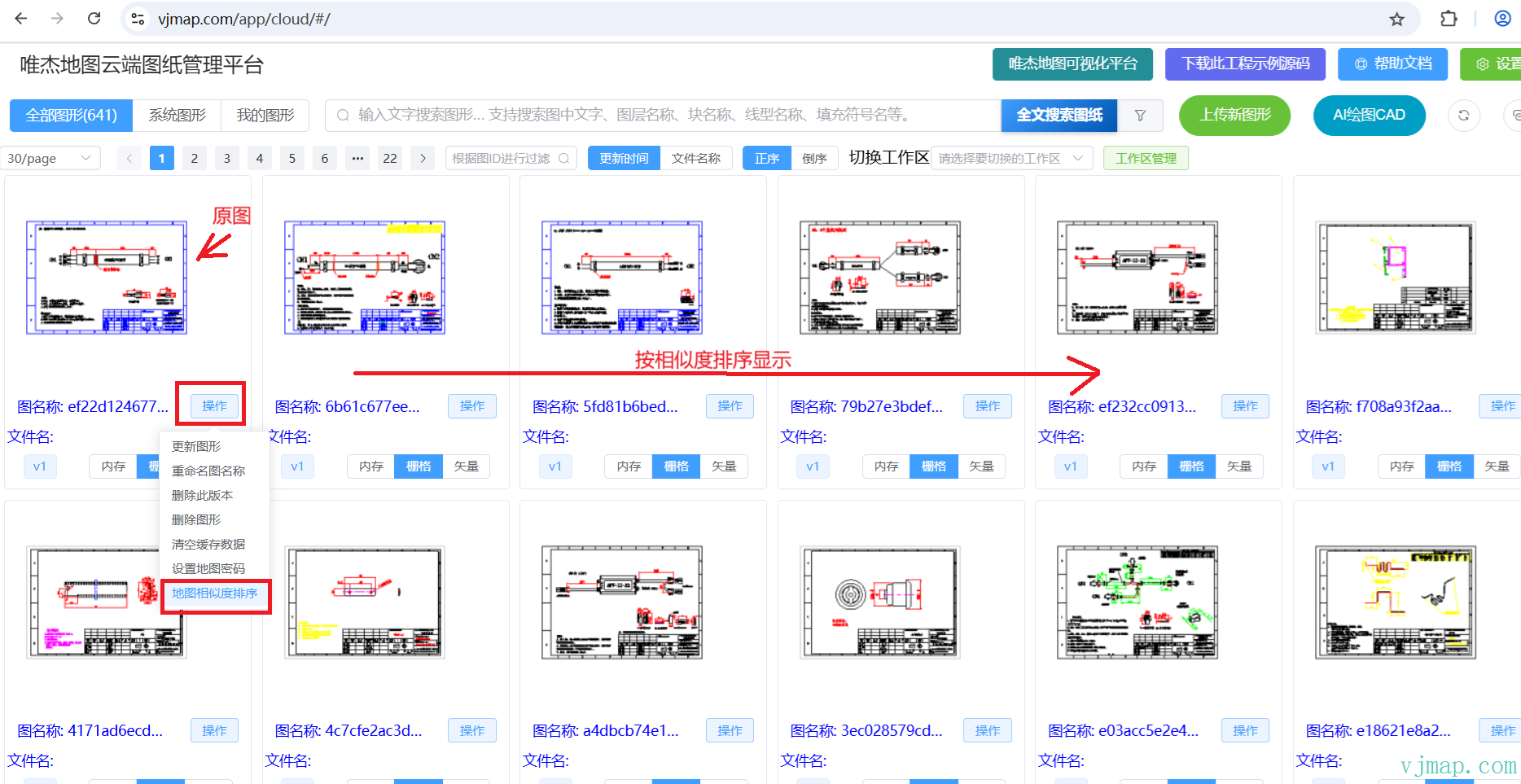
In VJMAP Cloud Management Platform (opens new window), under the Operations menu for the map to match, click Map Similarity Sort. Results are sorted by similarity to that map.
# III. AI Smart Query
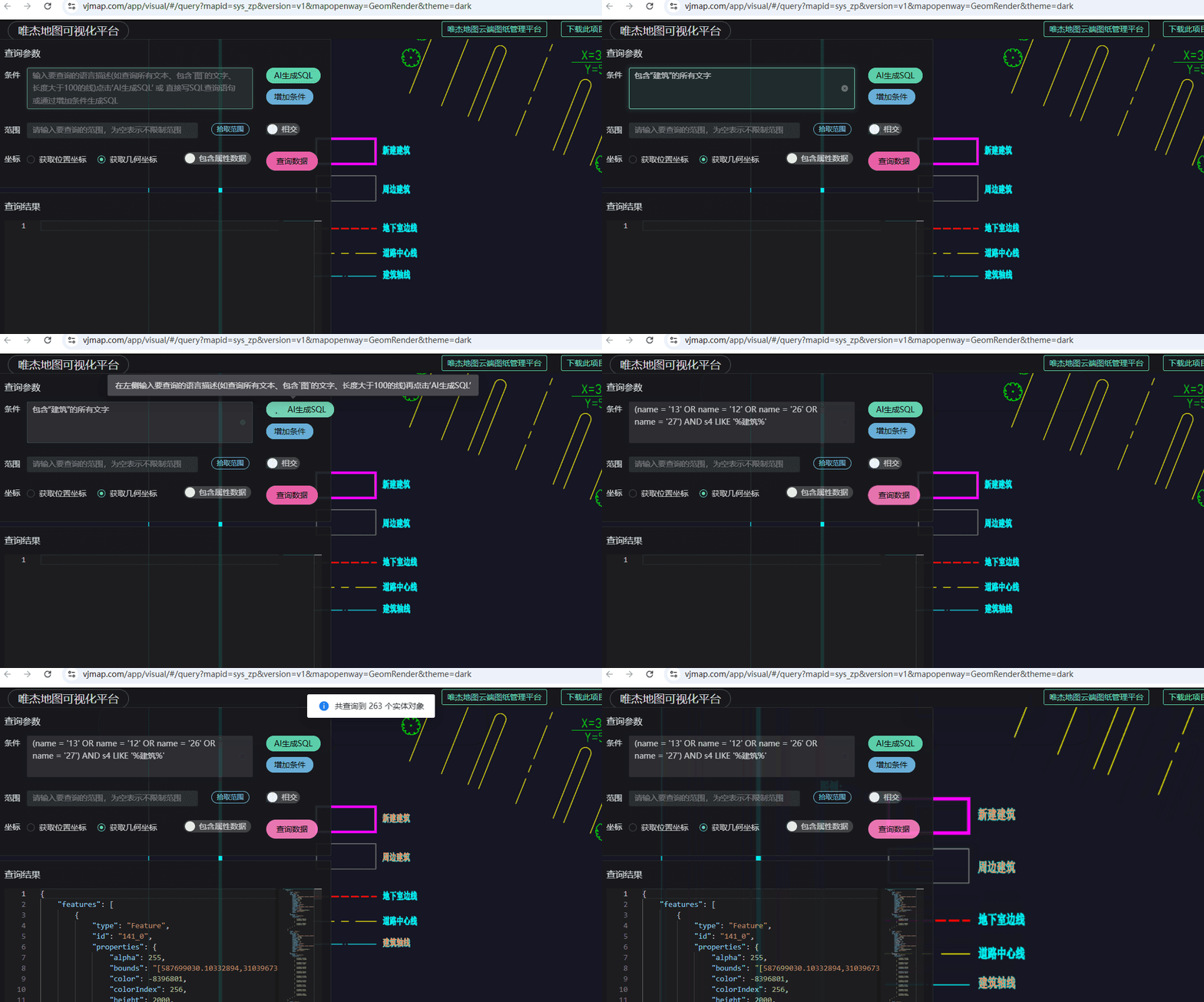
For a specific CAD map, you can query map content via AI semantic mode.
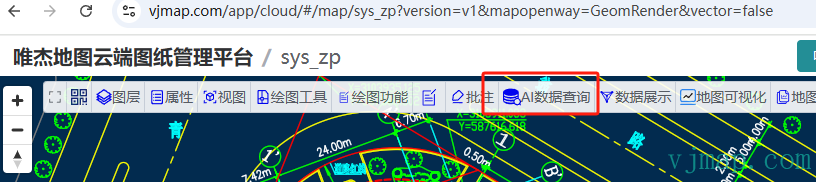
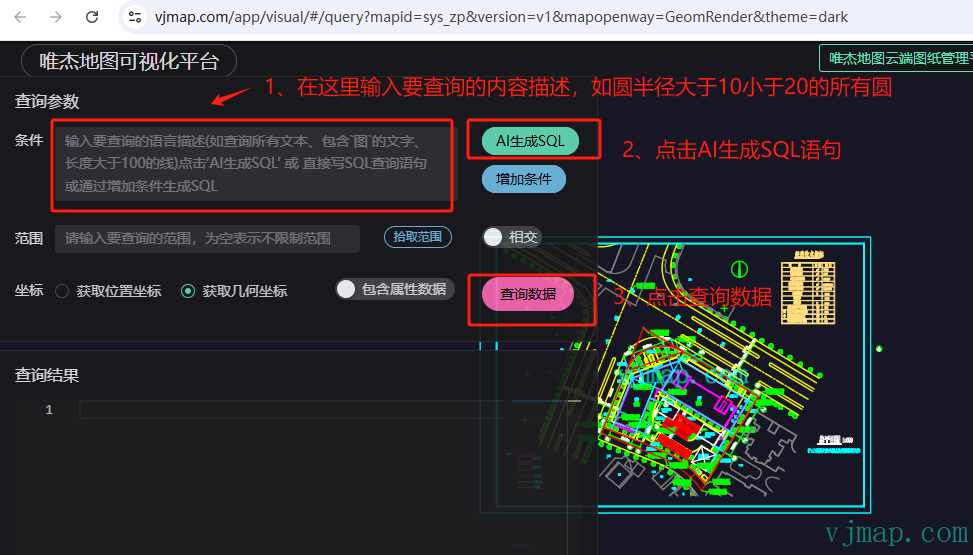
In VJMAP Cloud Management Platform (opens new window), open a map. Click AI Data Query in the toolbar to enter the AI Data Query Visual Query Tool.
Example URL: https://vjmap.com/app/visual/#/query?mapid=sys_zp&version=v1&mapopenway=GeomRender&theme=dark (opens new window)
Demo Tutorial