
# Map Opening Modes
| Opening Mode | Description | Advantages | Disadvantages | Use Cases |
|---|---|---|---|---|
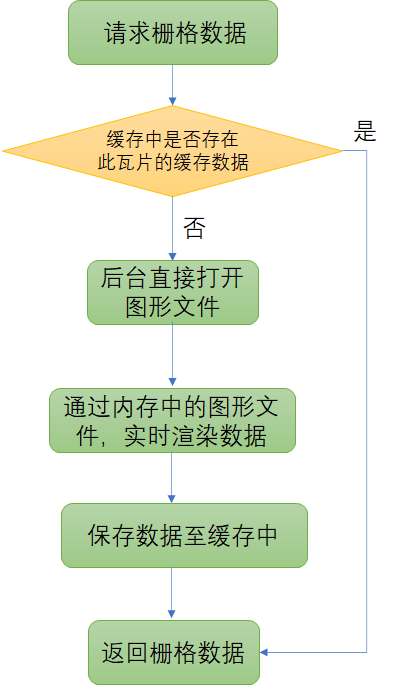
| Memory Mode (Raster) | When new tile data is requested, the backend reopens the drawing and renders tiles in memory | Fast initial data request | Slower subsequent requests (may need to reopen); uses memory; no vector tiles | Temporary viewing |
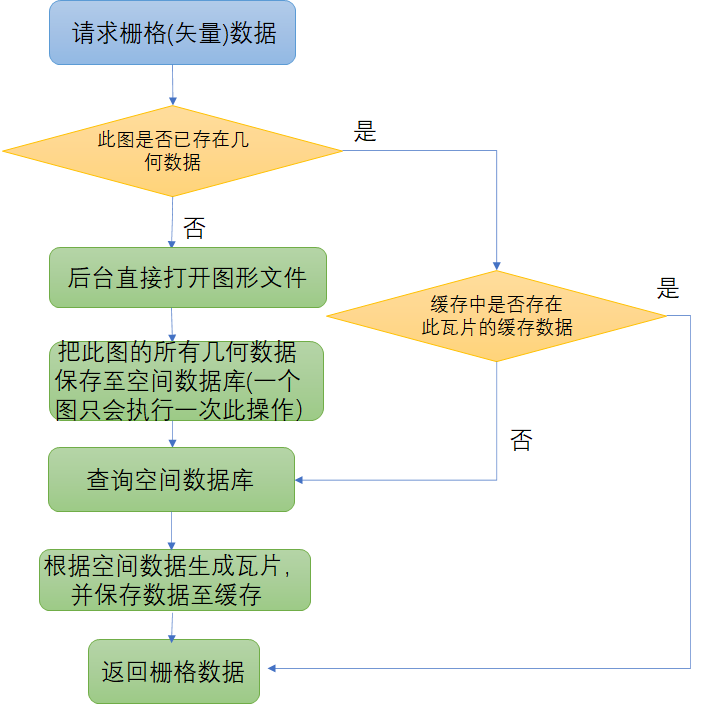
| Geometry Rendering (Raster) | On first request, backend opens the drawing and saves geometry to spatial database; subsequent requests query the spatial database for geometry rendering | Fast subsequent requests (no need to reopen for new tiles) | Slower first request (saving geometry to spatial database); uses some storage | Frequently viewed drawings (no custom frontend styling) |
| Geometry Rendering (Vector) | Same as above | Same as above; renders as vector tiles for custom frontend styling | Same as above; large vector tiles at low zoom levels for big drawings | Frequently viewed drawings (small file size) |
Note
Memory Mode: Fast first open, but no spatial queries—only expression queries. Each open (if cache miss) may require loading the CAD drawing in the backend. Subsequent opens are not instant. Suitable for temporary viewing. (Preserves original CAD entity structure)
Geometry Rendering (Raster or Vector): First open is slower because geometry is saved to the spatial database. Supports spatial database queries. Subsequent opens are instant from the spatial database. Suitable for frequently viewed drawings. (Explodes CAD block entities for spatial queries; relationships are linked via objectid)
# Converting Between Opening Modes
# Memory → Geometry Rendering
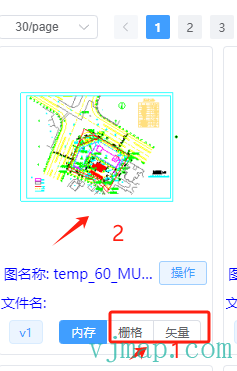
If the map was first opened in Memory mode. To switch to Geometry Rendering, go to VJMap Cloud Management Platform (opens new window), select the drawing, choose Raster or Vector, then click to open. This converts the drawing to the spatial database (takes some time) and opens it in raster or vector mode.
# Geometry Rendering → Memory
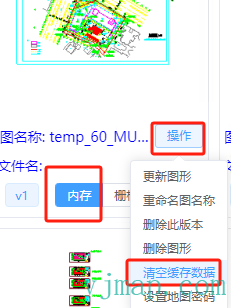
If the map was first opened in Geometry Rendering mode. To switch to Memory mode, go to VJMap Cloud Management Platform (opens new window), select the drawing, choose Memory, then click to open. To clear previously saved spatial database content, click the action button and select Clear Cache Data.
# Memory Mode
# Flow Diagram
# Code
// Open map
let res = await svc.openMap({
    mapopenway: vjmap.MapOpenWay.Memory, // Backend opens uploaded map in memory
    ...
})
// Create map object
let map = new vjmap.Map({
    style: svc.rasterStyle(), // Raster tile style
    ...
});
2
3
4
5
6
7
8
9
10
# Effect
# Geometry Rendering Mode
# Flow Diagram
# Geometry Rendering (Raster)
# Code
// Open map
let res = await svc.openMap({
    mapopenway: vjmap.MapOpenWay.GeomRender, // Open with geometry rendering
    ...
})
// Create map object
let map = new vjmap.Map({
    style: svc.rasterStyle(), // Raster tile style
    ...
});
2
3
4
5
6
7
8
9
10
# Effect
# Geometry Rendering (Vector)
# Code
// Open map
let res = await svc.openMap({
    mapopenway: vjmap.MapOpenWay.GeomRender, // Open with geometry rendering
    ...
})
// Create map object
let map = new vjmap.Map({
    style: svc.vectorStyle(), // Vector tile style
    ...
});
2
3
4
5
6
7
8
9
10